
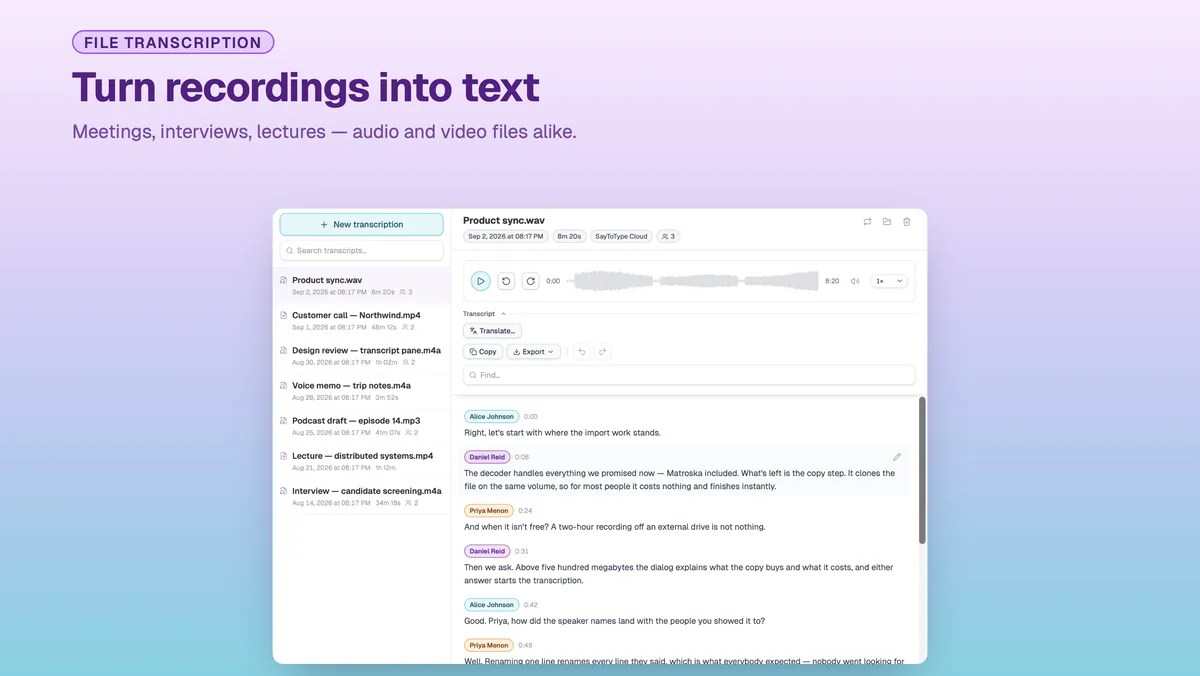
Most of us have more recordings than we will ever have time to play back: the meeting nobody took notes in, the interview you need one quote from, the lecture you meant to review, the video that still has no subtitles. Listening to all of it again costs as long as it took the first time, which is why most of it never gets listened to at all.
SayToType 2.1 closes that gap. The app that used to only turn your voice into text as you speak now also turns recordings you already have into text you can search, correct, quote, subtitle and translate. Two tools in one app, sharing one set of settings and one balance of minutes.
What's New in SayToType 2.1
Version 2.1 is the largest release since the app launched. Here is everything it brings:
- Transcribe audio and video files. Open the transcriptions window from the tray, pick a recording or drag it onto the window. Audio and video files both work.
- Long files handled properly. They are split at natural pauses and transcribed piece by piece, with progress you can watch and cancel at any point.
- Speaker labels. Speakers are told apart and labelled where the chosen model supports it. You can rename a speaker or hand a single line to another one.
- Work with the transcript. Play the recording back with the spoken line highlighted, search it, correct any line by hand, and watch video fullscreen with the subtitles over the picture.
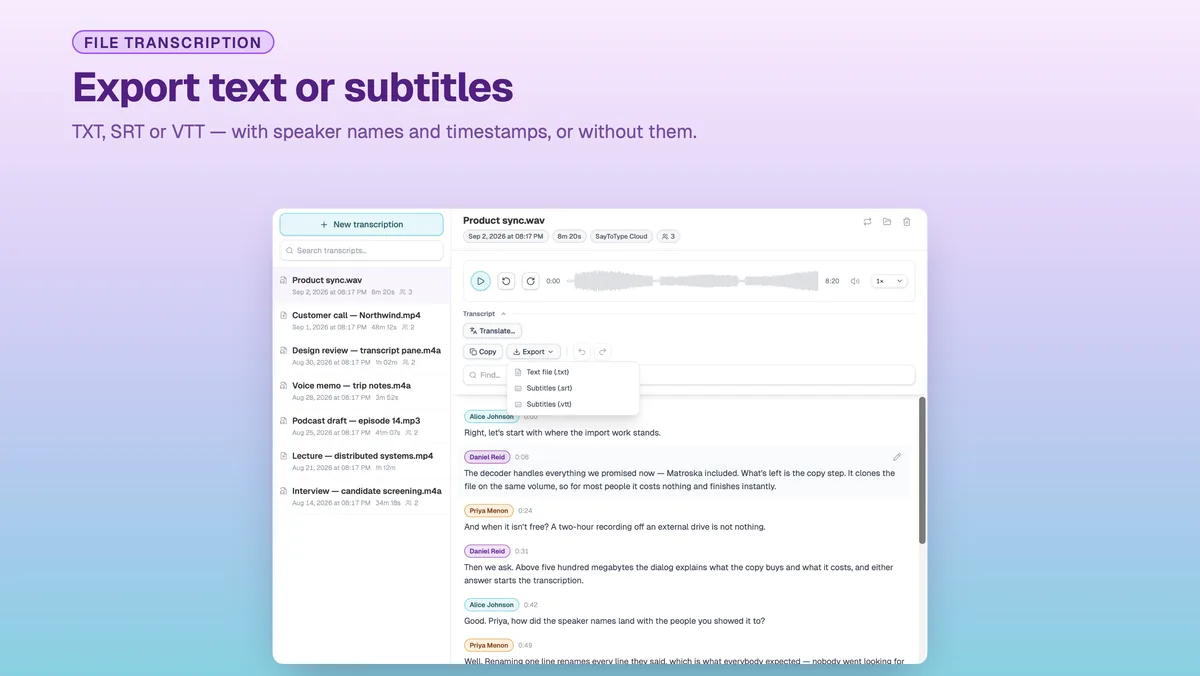
- Export. Copy the result or export it as plain text, SRT or VTT subtitles, with or without speaker names and timestamps.
- Translate a transcript. A finished transcript can be translated into another language on a tab beside the original.
- Sounds for dictation. A short cue plays when the microphone actually starts listening and another when the text lands in the field, so you no longer have to watch the window. It can be switched off in Audio Settings.
- Settings and stability. On macOS, microphone and Accessibility access can be re-requested from Settings if you denied them earlier. The recording window is now fully translated, and the language chosen in Settings applies to every window at once. Several Windows crashes and playback bugs are fixed, and a brief network error on the way to the transcription service is now retried instead of losing the dictation.
Which Audio and Video Files Can You Transcribe?
Both audio and video go in the same window. Supported formats include MP3, WAV, M4A, AAC, FLAC, OGG and OPUS for audio and MP4, MOV and WEBM for video, among others — if it plays, it will almost certainly transcribe.
Length is not the problem it usually is. A long recording is split at natural pauses and transcribed part by part, so a two-hour board meeting or a full podcast episode goes through the same way a five-minute voice memo does. Progress is visible while it runs, and you can cancel without losing what has already been done.
Who Said What: Automatic Speaker Labels
An interview transcribed as one unbroken wall of text is barely more useful than the audio it came from. SayToType tells speakers apart and labels them, so a meeting or an interview reads as a conversation — you can see who made which point, and pull a quote without replaying anything.
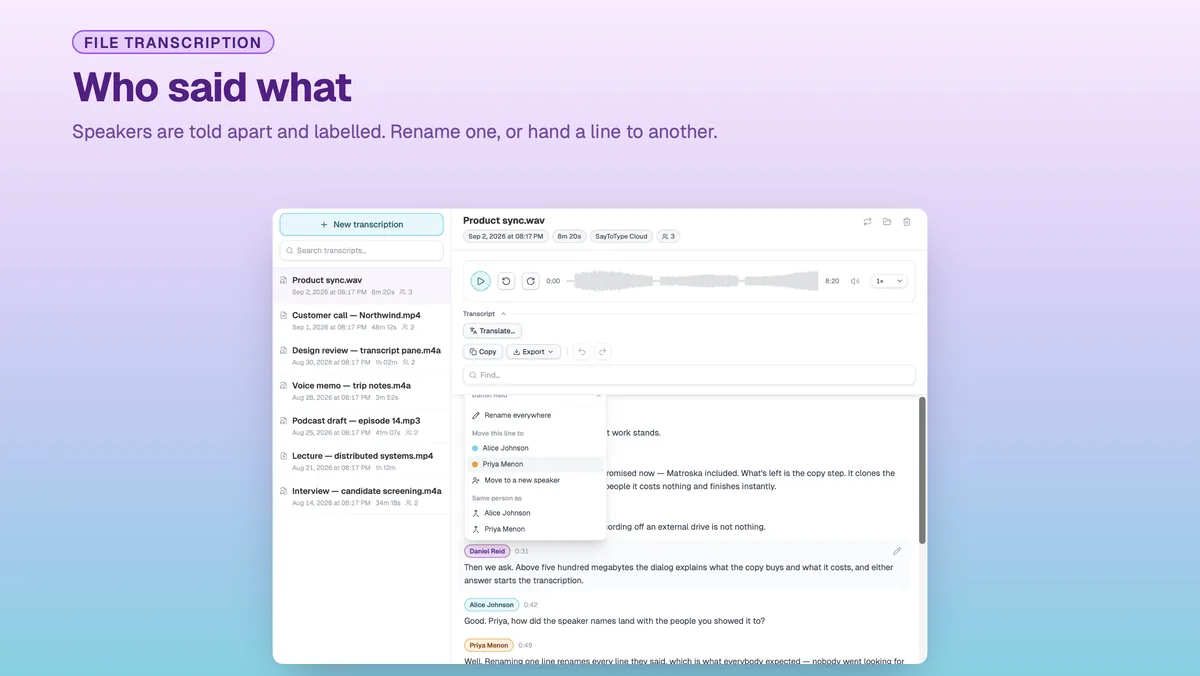
The labels are yours to correct. Rename Speaker 1 to the person who actually said it, and it changes everywhere in the transcript. If the model got a crosstalk moment wrong, hand that single line to a different speaker.
Speaker detection depends on the recognition model behind it, so the models that can do it are marked in the list — you always know before you start whether the transcript will come back labelled.
Working With the Transcript
Play it back and follow along
The recording plays inside the app with the spoken line highlighted as it goes. Click any line to jump straight to that moment — useful when you remember roughly what was said but not when. Video plays fullscreen with the transcript running over the picture as subtitles, which is often the fastest way to review a recording you have already transcribed.
Correct what the model misheard
No recognition is perfect on names, jargon or a bad microphone. Any line can be corrected by hand, and what the recognition actually heard stays one click away, so a correction is never a one-way door.
Search everything you have transcribed
Transcripts are kept inside the app and stay searchable — search inside one transcript, or across every transcript you have ever made. The library holds up to 1000 records and warns you before it drops the oldest one.
Export as Text or Subtitles: TXT, SRT and VTT
A transcript is only useful where you actually work, so the result copies to the clipboard or exports as a file, with or without speaker names and timestamps.
| Format | What you get | Good for |
|---|---|---|
| Plain text | The transcript as text, optionally with speaker names and timestamps | Notes, quotes, drafting, feeding an AI assistant |
| SRT | Timed subtitle blocks | YouTube, video editors, most players |
| VTT | Timed subtitles in the web standard | HTML5 video and web players |
Translate a Transcript Into Another Language
A finished transcript can be translated into another language on a tab beside the original, so you can read both side by side rather than losing the source.
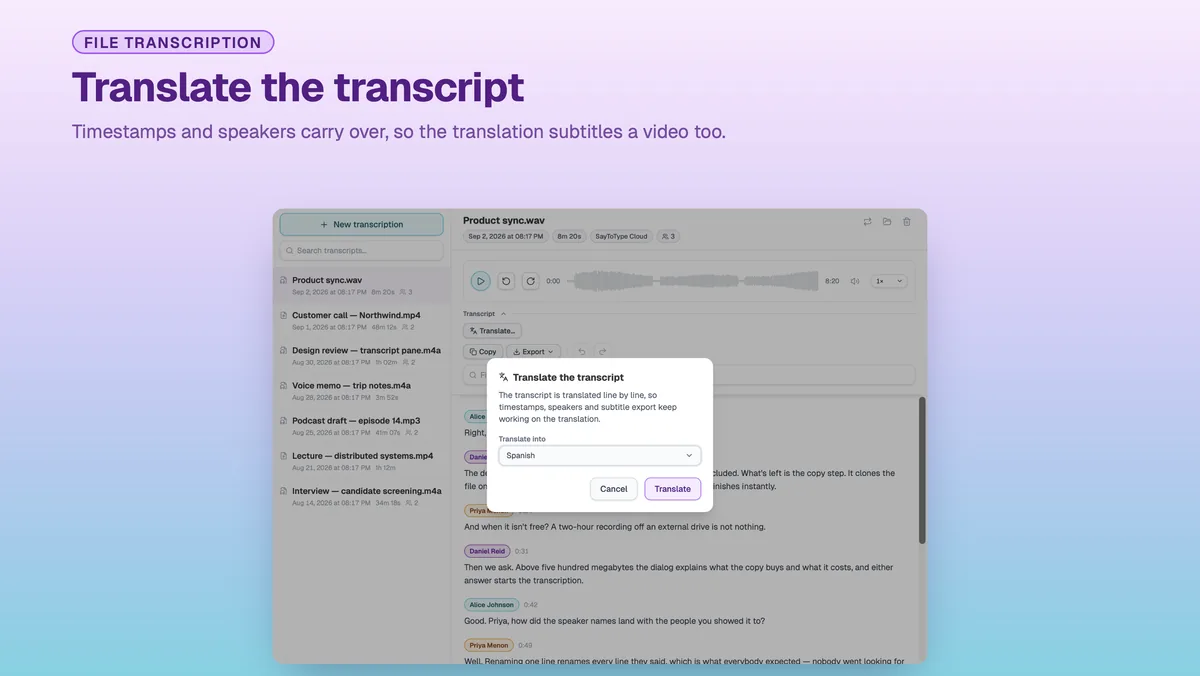
Timestamps and speaker names carry over into the translation. That means the translated version plays back, searches and exports as subtitles exactly like the original — subtitling a video in a second language takes a couple of clicks instead of a second pass through an editor.
Bring Your Own API Key
You choose which service does the recognition. File transcription works with SayToType Cloud, OpenAI, Mistral AI and Deepgram, and dictation additionally accepts any OpenAI-compatible provider.
If you already pay one of them, plug your own key in: a file transcribed through your own API key spends none of your SayToType balance. If you would rather not think about providers at all, SayToType Cloud is the default and needs no setup.
How to Transcribe Your First File
- Install SayToType for Windows or macOS and sign in.
- Open the transcriptions window from the tray icon.
- Pick a recording, or drag the file straight onto the window — audio or video, either works.
- Choose the recognition model. Models that can label speakers are marked in the list.
- Watch it run. A long file is split at pauses and transcribed piece by piece; you can cancel at any point.
- Rename the speakers, fix any line that came back wrong, and search for the part you needed.
- Copy the result, or export it as plain text, SRT or VTT.
Free Minutes and What They Cover
Every account gets 50 minutes of cloud transcription a month at no cost. Dictation and file transcription draw on the same balance, so a one-hour recording costs an hour of it.
Paid plans raise the limit or remove it entirely — see the pricing page for the current figures in your own currency. Both paid plans also include unlimited use of custom providers, and a 25-minute free trial lets you try a custom provider before deciding.
Which Platforms Transcribe Files?
File transcription runs on the desktop apps: Windows and macOS. The iOS and Android apps do dictation only — press, speak, and the text goes where you are typing.
All of it is on the download page, and the transcription section of the home page shows the whole flow in screenshots.
Frequently Asked Questions
What file formats can SayToType transcribe?
Audio and video alike: MP3, WAV, M4A, AAC, FLAC, OGG, OPUS, MP4, MOV, WEBM and more.
Can it tell speakers apart?
Yes, where the chosen recognition model supports it — those models are marked in the list. Speakers are labelled automatically, and you can rename one or reassign a single line.
Can I get subtitles for a video?
Yes. Transcribe the video file, then export the transcript as SRT or VTT. Translate it first and you get subtitles in a second language with the same timings.
How long can a recording be?
Long recordings are split at natural pauses and transcribed part by part, so length is not a hard limit — what it costs is minutes from your monthly balance, one for one.
Does file transcription need an internet connection?
Yes. The recognition runs on a service — SayToType Cloud by default, or OpenAI, Mistral AI or Deepgram if you supply your own key — so the file is transcribed online.
Which languages are supported?
Speech recognition covers 47 languages, and the app interface itself is translated into fifteen.
Two Tools, One App
Typing slows you down, and a recording nobody has time to listen to is work already lost. SayToType 2.1 covers both ends: your voice becomes your keyboard, and everything you have already recorded becomes text you can search, quote, subtitle and translate.
Download SayToType 2.1 for Windows or macOS. For more detail on either half of file transcription, see transcribing video and audio to text and making SRT and VTT subtitles from a video — or read how the app compares to other voice-to-text tools in our side-by-side comparison with Wispr Flow.